
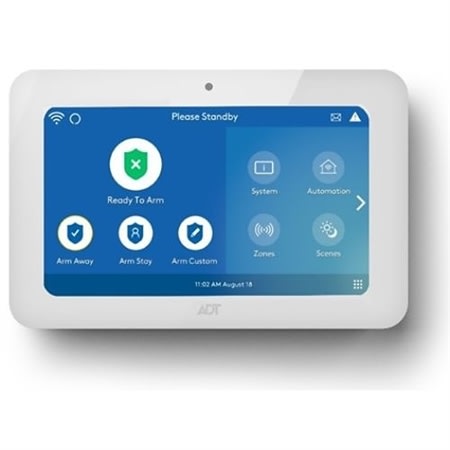
Optional, secondary touchscreen compatible with these Command panels: ADT7AIO / ADT5AIO, ADT2X16AIO, HYBRID
Note: The WTS800 wireless color touchscreen is the ADT professionally installed replacement for WTS700.
This guide explains how to operate everyday security functions from the ADT Command WTS800 wireless touchscreen keypad.
The WTS800 provides an intuitive interface to arm and disarm your system, view status, and perform common tasks from additional locations in your home or business.
Home Screen Menu
From the Home screen, you can quickly see system status and access arming options. Typical elements include:
- System status banner (e.g., Ready To Arm / Not Ready)
- Arming tiles: Arm Away, Arm Stay, Night Stay
- Menu / Tools icon for additional options (if available)
- Zones/Status icon to view sensors that are open or need attention
Tip: If a zone is open, the screen will indicate Not Ready. Close the zone or bypass it before arming.
Arm and Disarm
Use the WTS800 Touchscreen to arm or disarm your system with your User Code.
Arm Away
- Tap Arm Away on the Home screen.
- Enter your User Code when prompted.
- Exit before the countdown ends.
Note: Silent arming (no entry/exit beeps) may only be available via the Control mobile app depending on your service plan. Check your app or monitoring provider.
Arm Stay
- Tap Arm Stay.
- If an Entry Delay option is shown, choose your preference.
- Enter your User Code to start the silent countdown.
Night Stay
- Tap Arm Stay, then choose Night Stay.
- Enter your User Code. Perimeter sensors arm with no entry delay.
Disarm
- Tap Disarm.
- Enter your User Code.
Bypass Protected Areas
Bypass temporarily excludes a selected sensor or zone from the system so you can arm even if that area is open or has an issue. Use Custom Arming to temporarily exclude up to five zones when arming. Bypassed zones automatically clear the next time the system is disarmed.
- Ensure the system is disarmed.
- Tap Arm Custom.
- Select up to five zones to bypass.
- Tap Arm Custom and enter your User Code.
Important: Fire and life-safety zones cannot be bypassed. If you need to repeatedly bypass the same zone, repeat these steps each time you arm the system.
Chimes and Voice Announcements
Door chimes and voice announcements indicate system events (such as a door opening). The availability and behavior of these features are determined by your Command AIO panel and overall system settings. From the WTS800 Touchscreen, you can:
- Hear chimes and voice announcements when these features are enabled in the system.
- Enable or disable the system Tone and/or Voice chime.
Note: Changing these settings on the touchscreen adjusts the chime function for the entire system, not just the individual touchscreen.
Tip: If you do not see chime or voice options on the WTS800, adjust these settings from your Command panel or your Control app, if supported.
LEDs
If viewing on mobile device, turn it sideways to view entire table.
LED | Function |
Red | System Armed |
Red - Flashing | Alarm condition or in programming mode |
Amber | System trouble |
Amber - Flashing | Device trouble - System cannot be armed |
Green | Ready to arm |
Green - Flashing | Device trouble - System can be armed |
Off | Not ready to arm |
Battery Replacement
Battery Replacement Instructions for the ADT Command Wireless Touchscreen WTS800
Your ADT Command WTS800 Touchscreen Panel includes a rechargeable backup battery that allows the panel to remain powered during brief outages.
When to replace the battery:
You will know it is time to replace the battery when a “Low Battery” message appears on your Touchscreen display and in your ADT Control app. If your system or app displays a “Low Battery” or “Replace Battery” message, follow the steps below to safely replace the battery pack.
Battery required: 3.85V, 2350mAh; ADTBattery Replacement P/N 300-12418PK
- To maintain your system's warranty, this battery must be purchased from ADT. Order Here through chat, through your account on MyADT.com, or you may call 1-800-ADT-ASAP.
- Using a replacement battery purchased from a 3rd party (such as Amazon, Zion Security, Best Buy, etc.) will void the customer warranty and UL certification.
Note: ADT replacement battery orders ship to the contiguous U.S. only.
Before You Begin
Read these battery safety and replacement instructions in their entirety before handling or using a rechargeable battery.Caution: Because of the potential energy stored in a battery, improperly handling or not observing the precautions listed in this document can result in injury from electrolyte leakage, heat generation or explosion.
Use electrically insulated tools to prevent a short circuit or electrical shock. You can insulate metallic tools using vinyl or electrician’s tape.
Gently handle the battery when unpacking it. Rough handling can shock the battery pack and cause damage.
Check that the old battery pack is free from cracks, fractures, corrosion or leakage.
Be extremely careful not to drop the battery pack to avoid the possibility of damage and/or serious injury.
You will need:
A registered MyADT Account
Command Wireless Touchscreen (WTS800)
Small Phillips-head screwdriver with electrically insulated handle. Note: Use electrically insulated tools to prevent a short circuit or electrical shock. You can insulate metallic tools using vinyl or electrician’s tape.
3.85V, 2350mAh flat battery (P/N 300-12418PK)
Instructions
NOTE:The battery pack is located inside the touchscreen. You will need to take the Touchscreen off the backplate to access the battery compartment.
- Place your system on Test Mode
Log in to MyADT.com and put your system in Test Mode.
- Ensure your Command system is disarmedbefore removing the panel from the wall.
Disarm your system by tapping the Grid icon on your Command Touchscreen and entering your User Code.
- Access battery compartment
- Remove the bottom screw securing the touchscreen to the backplate using an insulated screwdriver.
- Separate the front cover from the rear mounting plate. Using a small flathead screwdriver, gently insert the tip into the designated pry slots along the bottom edge. Carefully work around the edges until the front cover releases from the rear mounting plate, then slide it off.
Note:Be sure to remove thefront cover assemblyonly. Do not attempt to lift or separate the LCD panel from the front cover.
- Disconnect and remove the used battery
- Disconnect the battery wires by grasping the plastic connector plug and pulling it from the receptacle on the circuit board.
- Lift and remove the battery pack from its tray in the front cover.Caution: Avoid puncturing the battery. Dispose of your battery using locally approved methods.
- Install the New Battery Pack
- Position the replacement battery into the slot on the back side of the front cover and press gently until the battery snaps into place and is secure.
- Route the battery wires neatly into the retainer clip, then plug the plastic plug firmly into the receptacle on the circuit board.Caution: Risk of explosion if the battery is replaced with an incorrect type.
- Remount the touchscreen cover
- Align the top tabs on thefront coverwith the corresponding slots on the rear mounting plate.
- Press the front and rear pieces together until they snap closed. Note: Make sure that no wires are pinched.
- Reinsert and tighten the bottom screw to lock the panel in place.
- Clear tamper
- If tamper alert was activated, clear it by tapping the Grid icon on the bottom right of the touchscreen and then entering your user code.
- Do this twice.
- Remove Your System from Test Mode
- Once the panel is reassembled and powered on, remove the system fromTest Mode.
Note: Your touchscreen may still display a“Low Batt”message. It could take 24 to 48 hours for the battery to be fully charged. If the message still shows after 48 hours, please use theChat buttonto troubleshoot your system with an agent.